Chart Export (Merging PT's Chart)
Chart Export
(Prior to Merging PT's Charts)
When merging a patient’s chart, if the patient has clinical documents in their chart, a chart export must first be performed to upload the clinical documents into the chart that will be retained.
Below are the steps to export clinical documents from the patient’s chart.
1.) In the patient's chart, click on the Hamburger > Chart Export
2.) Update Date rage to reflect "ALL TIME"
3.) Select the categories that have documents and select the arrow to route document towards the right
4.) Click on "Chart Export"
5.) In the "Send to" Field, type in a period (.). Update the method to "Paper Print Out"> Select "Submit">Select "Save".
Review Screenshot Below
6.) Select "Submission Complete" then select Paper Print out drop down then select "Save.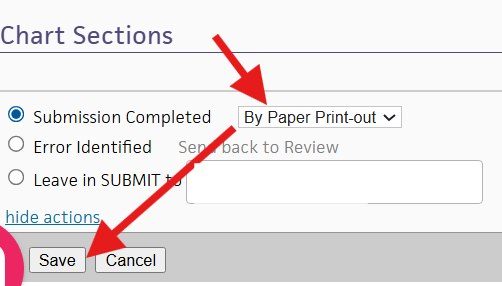
7.) Select "Print", save the document as a PDF Document on your Downloads file.
8.) Go to the patient's chart that you would like to keep and select Patient Action Menu (Hamburger) > Select "Add Document".
Add the chart export document.
Submit Zoho ticket for Chart Merger.
Related Articles
Chart Export
Chart Export Overview: Exporting documents/record out of the patient’s chart. Audience: Front office support and prescribers Review: Chart export is used to send documents from a patient’s chart to the patient externally or to an external third ...Restrict Visibility of Confidential Data in Encounter and Chart
Restrict Visibility of Confidential Data in Encounter and Chart During the Exam stage of the encounter, you can now mark the note field in the HPI, ROS, and AP sections as confidential so that it is hidden from patients and their family members or ...No Show-Late Cancels Workflow
EFFECTIVE 10/13/2025 If a patient calls to cancel or reschedule within 48 hours or less than 2 business days of a scheduled visit OR no shows for an appointment, CANCEL the appointment from the schedule using cancellation reason "NS/LC-Charge" *Use ...Screening Workflow in Kyruus and Athena
Patient workflow for completing screenings: 1. Patients will receive screenings in the Kyruus Previsit automated at the following cadence: PHQ-9 Every 2 weeks GAD-7 Every 2 weeks Absenteeism/Presenteeism Questionnaire Every Visit C-SSRS Yearly ...TEMPUS Order Tipsheet
TEMPUS Order Tipsheet Ordering Tempus outside of the Session Note 1.) From a patient’s chart, click on the patient action menu (Hamburger) and select “Create Order Group”. 2.) Enter a diagnosis from the patient’s chart by clicking on Diagnoses & ...